How to Start Streaming on Twitch or YouTube: A Beginner’s Guide
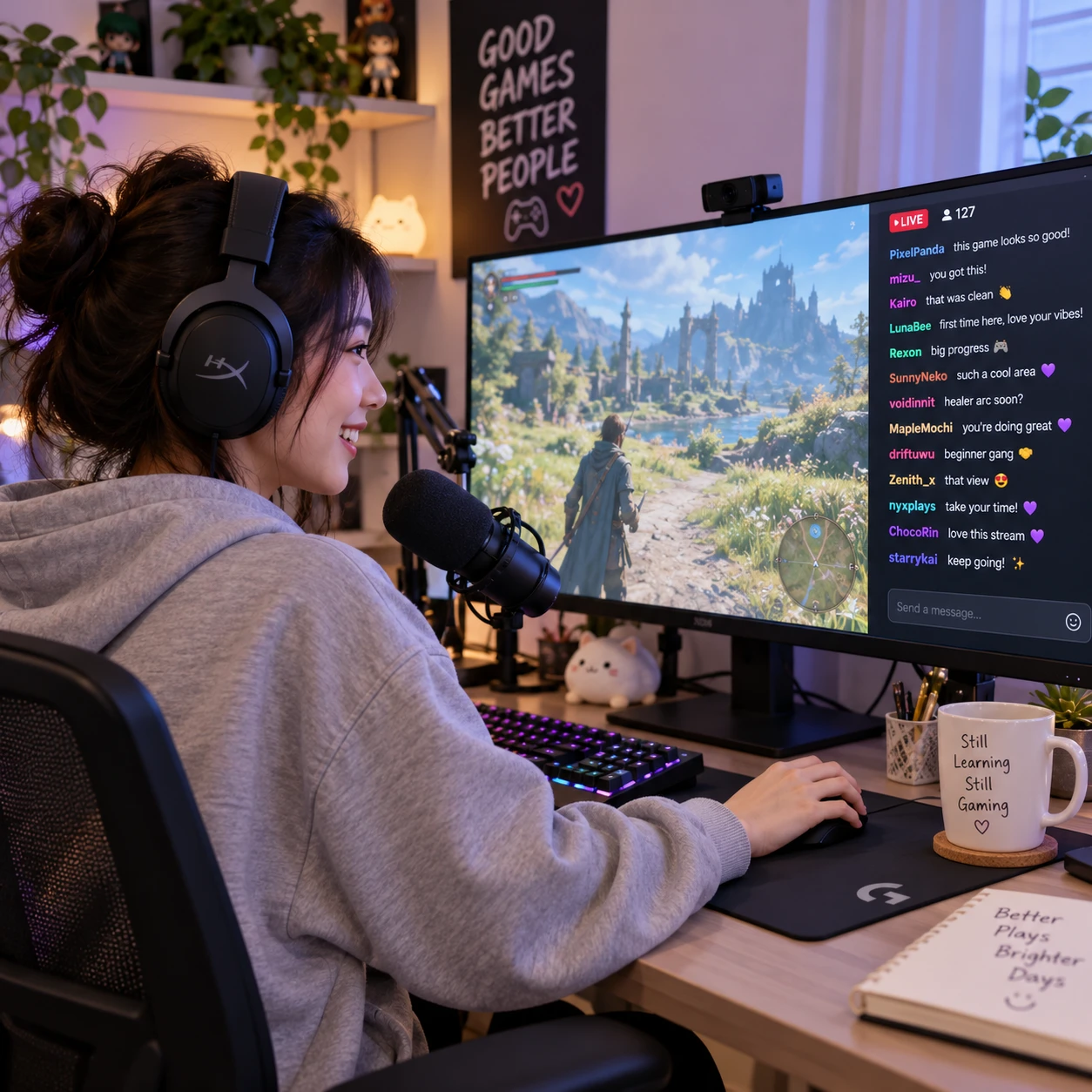
Your first gaming livestream does not need a studio, a costly camera, or a large audience. A game you enjoy, a clear microphone, a stable internet connection, and a short test broadcast are enough to get started on Twitch or YouTube Live.
The goal at first is to make the stream easy to watch and manageable to run. Use this guide to choose a platform, set up your equipment and streaming software, and build a simple routine you can improve over time.
Choose Twitch or YouTube for Your Gaming Stream
Choose Twitch if you want a platform centered on live gaming and chat; choose YouTube Live if you want streams to sit alongside searchable videos and Shorts on one channel. Either can work for a beginner, so start where your potential viewers already spend time.
Twitch is built around live broadcasts, gaming categories, and real-time community features. It can suit streamers who want to make scheduled live sessions the heart of their channel. The trade-off is that a new stream may be hard to discover among many live channels, so consistency and community connections matter.
YouTube Live can be a practical fit if you already post gaming videos or want to turn stream highlights into edited uploads. Viewers may find videos through search and recommendations after a broadcast ends. However, live chat and channel tools differ from Twitch, and building an audience across live and recorded content takes time.
Make the choice with a simple test: where do your friends watch, and what kind of content do you plan to make? If you mainly want to play live with chat, try Twitch. If you want a mix of livestreams, reviews, walkthroughs, and highlights, YouTube may keep your content in one place. You can switch later; your first platform is a starting point, not a permanent commitment.
Check Your Equipment and Internet Connection
To start streaming, you need a gaming device, a microphone, streaming software, and an upload connection that can carry your broadcast reliably. A webcam and capture card are optional, not requirements for every setup.
For PC gaming, one computer can run the game and OBS Studio, though demanding games may compete with streaming for processing power. If performance drops, lower the game’s graphics settings or stream resolution before buying new hardware. For console gaming, check whether the system’s built-in broadcast tools meet your needs. A capture card is generally used to send gameplay from a console or second PC into a streaming computer; it is not needed when streaming directly from a supported console.
Prioritize sound. A basic USB microphone or headset mic placed close to your mouth often makes a bigger difference than an expensive webcam. Use headphones to prevent game audio from feeding back into the mic. Add a webcam only if seeing your reactions suits your style; plenty of gaming streams use gameplay, voice, and chat without a face camera.
For internet, test upload speed and stability at the time you expect to stream. A wired Ethernet connection is often more dependable than Wi-Fi, especially if other people share the network. Leave some upload capacity unused rather than setting your stream bitrate equal to your maximum measured speed. If the connection fluctuates, reduce bitrate or resolution until the broadcast stays steady.
Set Up Your Channel and Streaming Software
Create your Twitch or YouTube channel, enable livestreaming where required, then connect compatible streaming software such as OBS Studio. Before broadcasting, review the platform’s current account and live-streaming requirements because they can change.
Choose a recognizable channel name and add a short description that explains what you play. Set up basic account security, including a strong password and two-factor authentication if available. On YouTube, livestream access may require account verification and can take time to become available; check your channel’s live controls ahead of your planned first stream.
OBS Studio is a free, open-source option for capturing gameplay, arranging scenes, mixing audio, and sending a stream to Twitch or YouTube Live. Other streaming software may offer a simpler guided setup or platform-specific features. Choose a tool you can understand and troubleshoot, rather than installing several programs at once.
In OBS Studio, use the platform’s account connection or enter the stream key through the correct settings page. Treat a stream key like a password: do not share it or show it on screen, and reset it if exposed. Create one simple scene with your game capture and microphone. You can add a webcam, alerts, or extra layouts later, after the basic setup works.
Configure Your First Stream
For your first stream, configure a clear microphone, a reliable gameplay capture source, and a modest bitrate and resolution that your computer and connection can sustain. Add an accurate stream title and category so viewers know what you are playing.
Start with a straightforward video target, such as 720p at 30 or 60 frames per second, then adjust after testing. Higher resolution and frame rate can make fast gameplay look sharper, but they use more upload bandwidth and processing power. Set the bitrate within the platform’s current guidance and your connection’s stable capacity; there is no single setting that suits every game, computer, and internet plan.
Capture the game using the source that fits it. OBS game capture may work well for many PC titles, while window or display capture can help when a game does not appear correctly. Console gameplay usually needs built-in broadcast tools or a capture card connected to the streaming PC. Test menus, loading screens, and gameplay, since some games switch display modes or block certain capture methods.
Balance audio before going live. Speak at your usual volume and check that your voice is easy to hear over game sound. Watch the OBS audio meters and make a short recording; listen for clipping, echo, or a fan that overwhelms your voice. Then write a specific stream title and category, select the right game, and include a brief description if it helps set expectations. Avoid vague titles such as “Playing games”; name the game and the activity, such as a ranked session or first playthrough.
Go Live and Engage With Viewers
Before you go live, verify the game, microphone, stream title, category, and connection with a short test. Once the broadcast starts, welcome people naturally, explain what you are playing, and keep talking even if chat is quiet.
Use this quick pre-stream check:
- Open the game and confirm the correct scene captures it.
- Check microphone and game-audio levels with headphones.
- Confirm the title, category, privacy, and stream settings on the platform.
- Close notifications or private windows that could appear on screen.
- Start the broadcast and confirm it appears correctly on a separate device or browser.
Early streams may have few or no chat messages. Narrate decisions, describe your plan for the session, or talk through a game review or strategy. When someone joins, greet them without demanding a response. A relaxed invitation such as “I’m trying this build today; what are you playing?” gives viewers an easy way into the conversation.
Set up basic chat moderation before you need it. Review each platform’s moderation tools, apply sensible filters, and consider asking a trusted friend to moderate if your audience grows. Do not show personal information in overlays or desktop captures, and pause or end the stream if something private appears. Keep your first session short enough that you can manage the game, chat, and technical controls without rushing.
Review Your Stream and Improve
After each broadcast, review a recording or the platform’s available analytics and choose one change for the next stream. Small, specific adjustments are easier to test than rebuilding your entire setup.
Watch a few minutes from the beginning, middle, and end. Check whether your voice remains clear, the game stays visible, and the broadcast avoids dropped frames or long silent stretches. If the recording sounds muddy, adjust microphone position or gain. If gameplay stutters, reduce in-game settings, output resolution, or frame rate one step at a time.
Use Twitch or YouTube analytics as clues, not a verdict on whether the stream succeeded. Viewer counts vary, especially when you are new. Look for practical patterns: when viewers leave, which games bring conversation, and whether your schedule is realistic. A reliable weekly time can help returning viewers know when to find you, but it should fit your life and energy.
Keep a short post-stream note with three items: what worked, what failed, and what you will test next. For example, if chat could not hear your voice over a shooter, lower game audio slightly before changing your microphone or buying equipment. This one-change approach makes troubleshooting clearer and protects you from spending money to solve a setting problem.
Frequently Asked Questions
Beginners can stream with minimal equipment, and the right setup depends on the game, device, and platform. These answers cover common questions before a first broadcast.
Can I stream games without a webcam?
Yes. A webcam is optional on Twitch and YouTube Live. You can stream gameplay with a microphone, or use text and graphics to give the channel a visual identity.
Do I need a capture card to stream?
No. You generally do not need one for PC gameplay or when using a console’s built-in streaming feature. A capture card is useful when sending console video to a separate streaming PC or when your setup needs an external video input.
Is OBS Studio free?
Yes. OBS Studio is free and open source. It offers detailed control, though beginners may need time to learn scenes, sources, audio routing, and output settings.
Can I stream to Twitch and YouTube at the same time?
Some tools and services support simultaneous streaming, but platform rules and eligibility requirements can change. Check the current terms for Twitch and YouTube before using multistreaming, and remember that sending one broadcast to multiple platforms can require more upload bandwidth and more attention to separate chats.